Getting started
This page takes you from a fresh start to your first trade. You check your bank account, put items into it, sell some of them on the stock market, buy something back and take it out again. It takes about ten minutes.
Before you start
- The server runs BankSystem and StockMarket.
- You have a few iron ingots, or another item that has a market on your server.
- You can craft a Terminal Block, a Banking Software and a Trading Software. The recipes are on the BankSystem and StockMarket recipe pages.
1. Check your bank account
You already have a bank account. The mod opens a personal account for you the first time you join the server.
Type this in chat to see how much money is in it:
New players usually start with no money. Some servers give you a starting balance. Either way, your first money comes from selling items, as shown below.
2. Build a Bank Terminal
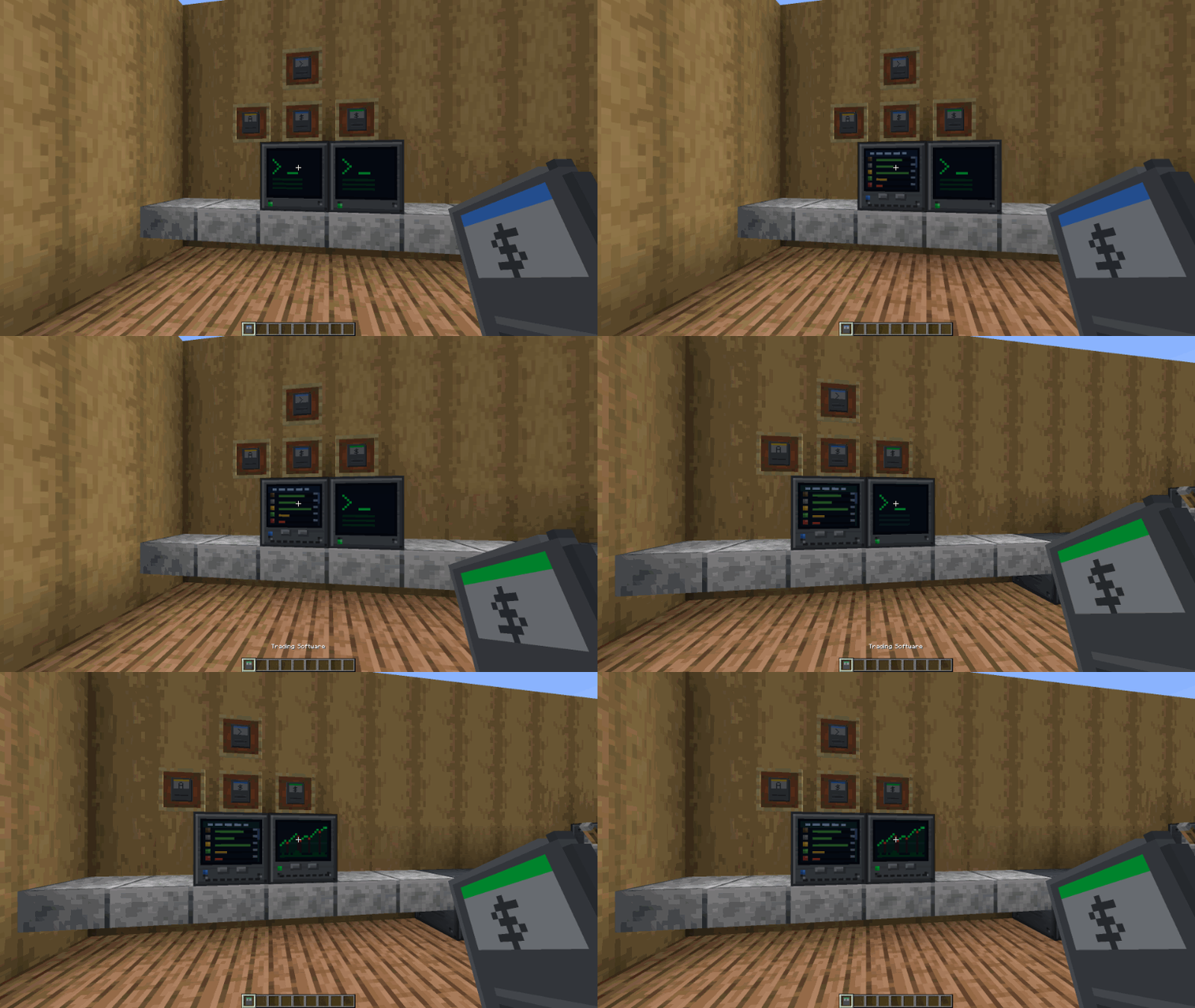
The Bank Terminal Block is where items go into the bank and come back out.
- Place a Terminal Block.
- Hold the Banking Software and right-click the Terminal Block. It turns into a Bank Terminal Block.
The software is not used up. Keep it: you can program more blocks with it later.
3. Put items into the bank
- Right-click the Bank Terminal Block. The bank screen opens. On the right you see the Bank Terminal Inventory: 27 slots that only you can see at this block.
- Move your iron ingots from your inventory into those slots.
- Click Send items to bank.
The iron leaves the slots, and its balance in the item list on the left goes up.
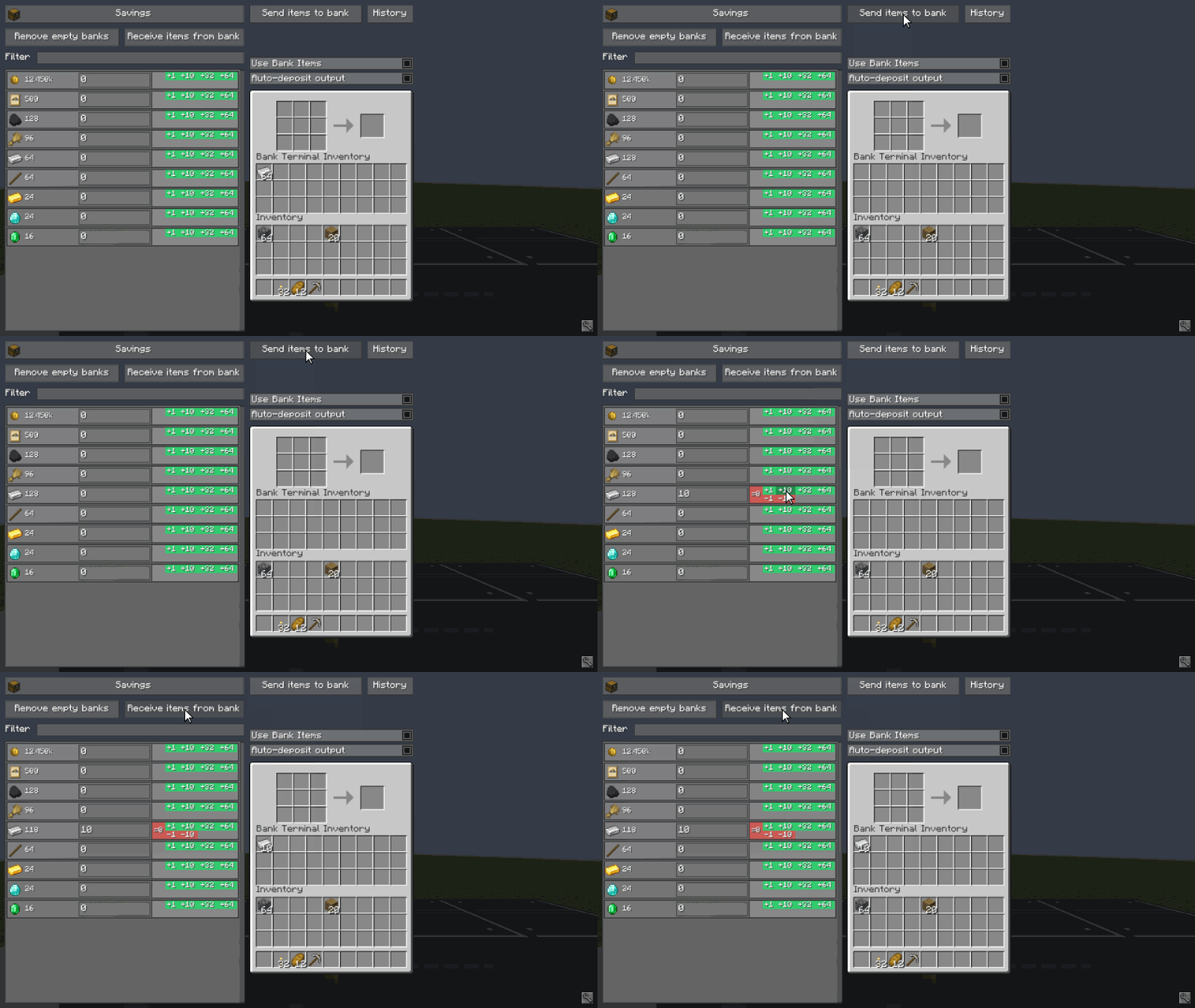
Not every item can go into the bank. Iron ingots, gold ingots, diamonds, emeralds, coal and every item that has a market always can. Your server admin may allow more. Items that can't be banked stay in the slots, so you don't lose them.
4. Build a Stock Market Block
Place a second Terminal Block. Hold the Trading Software and right-click it. It turns into a Stock Market Block.
One block family
The Bank Terminal, the ATM and the Stock Market Block are all the same Terminal Block with different software. Right-click any of them with another software to reprogram it. See How the two mods work together.
5. Sell your first items
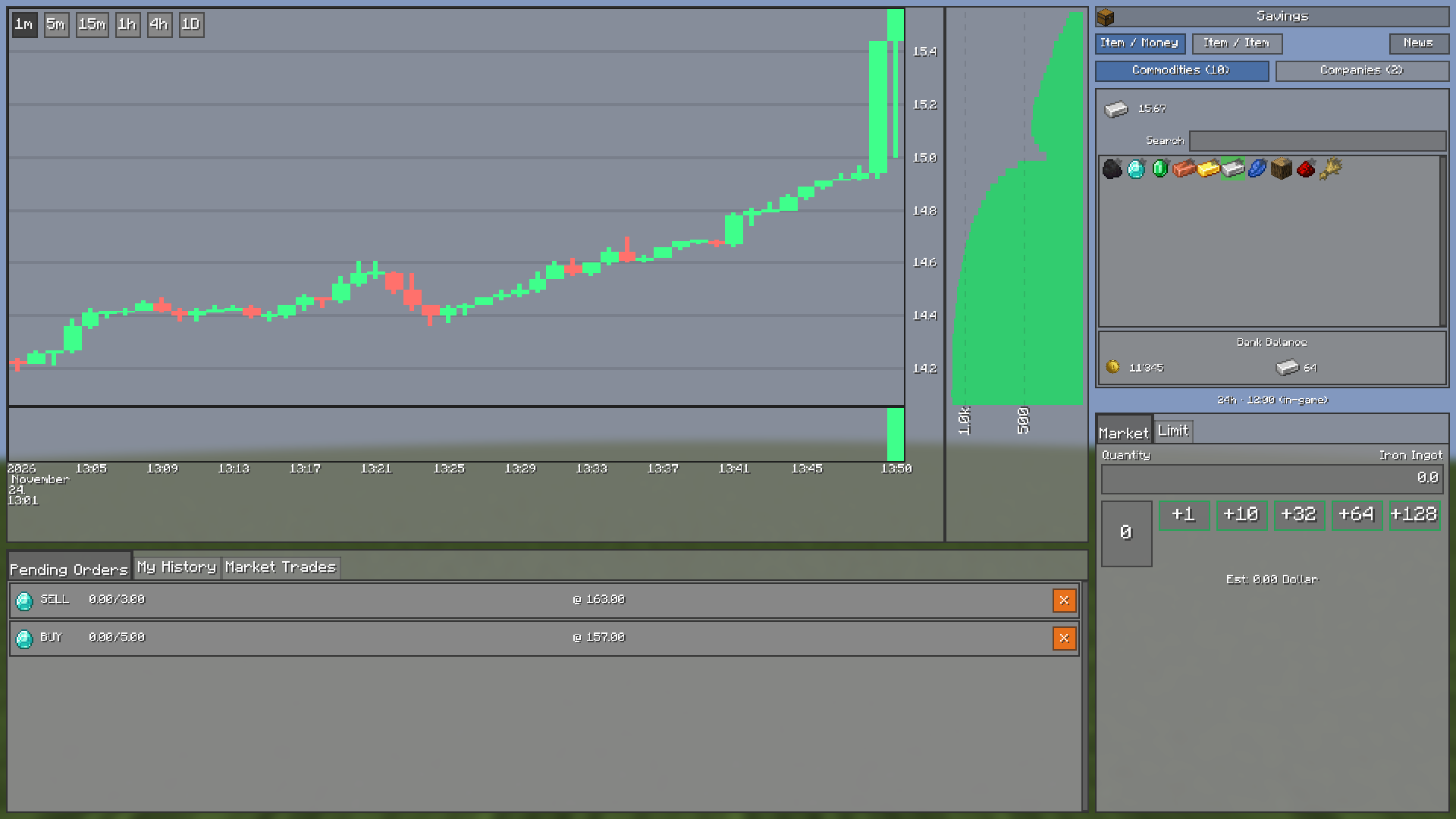
- Right-click the Stock Market Block. The trading screen opens.
- Pick the iron market in the top bar, or find it with Select Market.
- Open the Market tab.
- Type a Quantity, for example
10. - Click Sell.
The market sells the iron from your bank account right away. The money lands in the same account. Your Bank Balance in the trading screen goes up.
6. Buy something
Now use the money. Pick another market, type a Quantity and click Buy. The items land in your bank account, not in your inventory.
A market order like this trades at once, at the best price on offer. To trade at a price you choose, use a limit order instead. Trading basics explains both.
7. Take your items out
- Go back to the Bank Terminal Block and open it.
- Find the item in the list on the left. Set the amount with the +1, +10, +32 and +64 buttons, or type it.
- Click Receive items from bank.
The items appear in the Bank Terminal Inventory slots. Move them into your inventory.
If something goes wrong
| Message | What it means | What to do |
|---|---|---|
| … is not allowed to be stored in the bank | The server doesn't allow this item in the bank. | Ask your admin, or check whether the item has a market. |
| The condition of … prevents banking it | The item is in a state the bank can't store, for example spoiled food from another mod. | Keep it in your inventory. |
| Damaged or enchanted items stay in the slots | The bank only stores items in their plain state. | Take them back into your inventory. |
| The market you want isn't in the list | Nobody has created a market for that item. | Ask your admin. Only admins create markets. |
Related pages
- How the two mods work together: how the bank and the stock market share your account.
- Bank Terminal: the bank screen in detail, including crafting from the bank.
- Trading basics: market and limit orders, and what each part of the trading screen does.
- Bank accounts: shared accounts and who may use them.