Your first plugin
This page builds the PriceFloorPlugin from the example plugin project. It keeps the price of a market from falling below a minimum that admins set per market. On the way you write a server plugin with per-market settings, register it and give it a settings form.
Before you start
- A project that depends on StockMarket, set up as in Setting up your project. The quickest start is the example plugin project: it already contains the plugin from this page.
- The example project is an Architectury project with a
common, afabricand aneoforgemodule. All plugin code lives incommon, in the packagecom.example.stockmarketplugin.plugin. - Read the Plugin system overview first if you want to know when each method is called.
Step 1: Write the server plugin
The plugin extends ServerPlugin<TSettings, TRuntimeData>. Its settings type is a record with one value, the minimum price, and a StreamCodec that writes it. It streams no live data, so the second type is Void.
package com.example.stockmarketplugin.plugin;

import io.netty.buffer.ByteBuf;
import net.kroia.banksystem.util.ItemID;
import net.kroia.stockmarket.pluginsystem.interaction.MarketInterface;
import net.kroia.stockmarket.pluginsystem.plugin.ServerPlugin;
import net.minecraft.nbt.CompoundTag;
import net.minecraft.network.codec.StreamCodec;
import org.jetbrains.annotations.NotNull;

import java.util.List;

public class PriceFloorPlugin extends ServerPlugin<PriceFloorPlugin.Settings, Void> {

    // The settings of one market. The same codec is used on the server and the client.
    public record Settings(float minPrice) {
        public static final StreamCodec<ByteBuf, Settings> CODEC = new StreamCodec<>() {
            @Override
            public Settings decode(ByteBuf buf) {
                return new Settings(buf.readFloat());
            }

            @Override
            public void encode(ByteBuf buf, Settings s) {
                buf.writeFloat(s.minPrice());
            }
        };
    }

    public PriceFloorPlugin() {
        super();
    }

    @Override
    public void init() {}

    @Override
    public void deInit() {}

    @Override
    public void update(List<MarketInterface> markets) {
        for (MarketInterface market : markets) {
            Settings settings = getCustomSettings(market.market.getMarketID());
            if (settings == null)
                continue;
            double currentTargetPrice = market.market.getTargetPrice();
            double minimumPrice = settings.minPrice;
            if (market.market.getPrice() < minimumPrice || currentTargetPrice < minimumPrice) {
                // Steer this market back up to its floor
                market.market.setTargetPrice(settings.minPrice());
            }
            // Above the floor: do nothing, the other plugins drive the price
        }
    }

    @Override
    public void finalize(List<MarketInterface> markets) {}

    @Override
    public void onMarketSubscribed(ItemID marketID) {}

    @Override
    public void onMarketUnsubscribed(ItemID marketID) {}

    @Override
    public void onEnable() {}

    @Override
    public void onDisable() {}

    // --- Per-market settings ---

    @Override
    protected StreamCodec<ByteBuf, Settings> customSettingsCodec() {
        return Settings.CODEC;
    }

    @Override
    protected Settings provideDefaultCustomSettings() {
        return new Settings(10.0f);   // what a newly subscribed market gets
    }

    @Override
    protected void onCustomSettingsApplied(ItemID marketID, @NotNull Settings settings) {
        // Nothing to do: update() reads the settings with getCustomSettings()
    }

    // --- Saving ---

    @Override
    public boolean save(CompoundTag tag) {
        return true;   // the per-market settings are saved by the framework
    }

    @Override
    public boolean load(CompoundTag tag) {
        return true;
    }
}
What the parts do:
updateruns every tick. It gets the subscribed markets that are open.getCustomSettings(marketID)returns that market's settings.setTargetPricedoesn't move the price itself. It sets the price the Target Price Bot trades towards, once all plugins are done.customSettingsCodectells the framework how to write the settings. With it, the framework keeps oneSettingsper market, sends them to the settings form and saves them with the world.provideDefaultCustomSettingsgives the settings of a market that was just added to the plugin.- The abstract methods you don't need stay empty.
Check the values in the record
The framework stores what the client sends, then calls onCustomSettingsApplied. To keep bad values out, fix them in the record's compact constructor, for example public Settings { if (!(minPrice >= 0)) minPrice = 0; }. The settings form then gets the corrected value back.
Step 2: Register the plugin
Register the plugin type in a static field. The registration runs when the class is first used, so the setup method only has to touch the class.
package com.example.stockmarketplugin.plugin;

import com.example.stockmarketplugin.plugin.screen.PriceFloorGuiElement;
import net.kroia.stockmarket.pluginsystem.registry.PluginRegistry;
import net.kroia.stockmarket.pluginsystem.registry.PluginRegistryObject;

public class ExamplePlugins {

    public static final PluginRegistryObject PRICE_FLOOR_PLUGIN = PluginRegistry.registerPlugin(
            PriceFloorPlugin.class.getName(),
            "PriceFloorPlugin",
            "Prevents market prices from dropping below a configurable minimum price.",
            PriceFloorPlugin::new
    );

    public static void serverSetup() {
        // Loading this class runs the registration above
    }

    public static void clientSetup() {
        PRICE_FLOOR_PLUGIN.setGuiElementFactory(PriceFloorGuiElement::new);
    }
}
- The first argument is the type ID. Saved plugin instances find their type by it, so never change it. With the class name as type ID, don't move or rename the class either.
- The second argument is the name in the plugin list, the third the description in the Add Plugin list.
setGuiElementFactorybelongs inclientSetup, so a dedicated server never loads client classes.
Despite its name, serverSetup() must run on both sides: the client needs the registration for the Add Plugin list. The common class ExamplePluginMod forwards both methods, and the loader entry points call them:
public class ExamplePluginFabric implements ModInitializer {
    @Override
    public void onInitialize() {
        ExamplePluginMod.serverSetup();
        if (FabricLoader.getInstance().getEnvironmentType() == EnvType.CLIENT) {
            ClientLifecycleEvents.CLIENT_STARTED.register(client -> {
                ExamplePluginMod.clientSetup();
            });
        }
    }
}
@EventBusSubscriber(modid = ExamplePluginMod.MOD_ID, bus = EventBusSubscriber.Bus.MOD)
public class NeoForgeSetup {
    @SubscribeEvent
    public static void commonSetup(FMLCommonSetupEvent event) {
        ExamplePluginMod.serverSetup();
    }

    @SubscribeEvent
    public static void clientSetup(FMLClientSetupEvent event) {
        ExamplePluginMod.clientSetup();
    }
}
Step 3: Add the settings form
The settings form is a PluginGuiElement with the same type parameters as the server plugin. The Plugin Management screen shows it inside the plugin's entry.
package com.example.stockmarketplugin.plugin.screen;

import com.example.stockmarketplugin.plugin.PriceFloorPlugin;
import io.netty.buffer.ByteBuf;
import net.kroia.banksystem.util.ItemID;
import net.kroia.modutilities.gui.elements.Button;
import net.kroia.modutilities.gui.elements.Label;
import net.kroia.modutilities.gui.elements.TextBox;
import net.kroia.stockmarket.pluginsystem.plugin.core.PluginSyncData;
import net.kroia.stockmarket.pluginsystem.screen.PluginGuiElement;
import net.minecraft.network.codec.StreamCodec;
import org.jetbrains.annotations.Nullable;

import java.util.HashMap;
import java.util.List;
import java.util.Map;

public class PriceFloorGuiElement extends PluginGuiElement<PriceFloorPlugin.Settings, Void> {

    private final Label minPriceLabel;
    private final TextBox minPriceTextBox;
    private final Button applyButton;

    // The settings of every subscribed market, as the server sent them
    private final Map<ItemID, PriceFloorPlugin.Settings> settingsMap = new HashMap<>();

    public PriceFloorGuiElement() {
        minPriceLabel = new Label("Min Price:");
        minPriceTextBox = new TextBox();
        // Positive numbers only: up to 10 digits, 6 decimal places
        minPriceTextBox.setMatchRegex(TextBox.createRegex_onlyNumerical(true, false, 10, 6));
        applyButton = new Button("Apply", this::onApply);

        addChild(minPriceLabel);
        addChild(minPriceTextBox);
        addChild(applyButton);

        // The plugin entry reserves this height. Without it the form is invisible.
        setHeight(2 * (defaultElementHeight + spacing) + padding);
    }

    @Override
    protected StreamCodec<ByteBuf, PriceFloorPlugin.Settings> customSettingsCodec() {
        return PriceFloorPlugin.Settings.CODEC;   // the same codec as on the server
    }

    @Override
    protected void onPluginSyncDataReceived(PluginSyncData data,
                                            @Nullable Map<ItemID, PriceFloorPlugin.Settings> customSettingsMap) {
        settingsMap.clear();
        if (customSettingsMap != null)
            settingsMap.putAll(customSettingsMap);

        List<ItemID> markets = data.getSubscribedMarkets();
        if (!markets.isEmpty())
            setActiveMarket(markets.get(0));   // calls onActiveMarketChanged
    }

    @Override
    protected void onActiveMarketChanged(@Nullable ItemID marketID) {
        // The admin clicked another market icon: show its value
        PriceFloorPlugin.Settings settings = marketID != null ? settingsMap.get(marketID) : null;
        if (settings != null)
            minPriceTextBox.setText(settings.minPrice());
    }

    @Override
    protected void onCustomSettingsResponse(boolean success, @Nullable ItemID marketID,
                                            @Nullable PriceFloorPlugin.Settings confirmedSettings) {
        // Remember what the server stored, so the form is right when the admin comes back
        if (success && marketID != null && confirmedSettings != null)
            settingsMap.put(marketID, confirmedSettings);
    }

    private void onApply() {
        ItemID market = getActiveMarket();
        if (market != null)
            sendCustomSettings(market, new PriceFloorPlugin.Settings((float) minPriceTextBox.getDouble()));
    }

    @Override
    protected void layoutChanged() {
        int w = getWidth();
        int eh = defaultElementHeight;
        int labelW = w / 3;

        minPriceLabel.setBounds(padding, padding, labelW, eh);
        minPriceTextBox.setBounds(labelW + spacing, padding, w - labelW - spacing, eh);
        applyButton.setBounds(padding, minPriceTextBox.getBottom() + spacing, w - 2 * padding, eh);
    }

    @Override
    protected void render() {}
}
What the parts do:
setHeightin the constructor tells the plugin entry how much room the form needs.onPluginSyncDataReceivedgets the plugin's data from the server, with the settings of every market already decoded.onActiveMarketChangedruns when the admin clicks a market icon in the plugin's entry. Settings are per market, so the form shows the selected market's values.sendCustomSettingssends the settings of one market to the server. The answer arrives inonCustomSettingsResponse, with the values the server stored. The example project leaves this method out; add it, or the form shows the old value when the admin switches back to the market.padding,spacinganddefaultElementHeightare layout constants of the base class (4, 4 and 20 pixels).
Step 4: Try it in game
- Build the project with
gradlew build. The jars are infabric/build/libs/andneoforge/build/libs/. Use the one without a suffix such as-sources. - Put the jar for your loader into the
mods/folder of the server and of your client, next to StockMarket, BankSystem and ModUtilities. - Start the game, run
/stockmarket manageand click Manage Plugins. - Click Add Plugin and pick PriceFloorPlugin. The new instance appears at the bottom of the list, switched off.
- Tick Enabled.
- Click + and add one or more markets.
- Click a market icon in the plugin's entry, type a Min Price and click Apply.
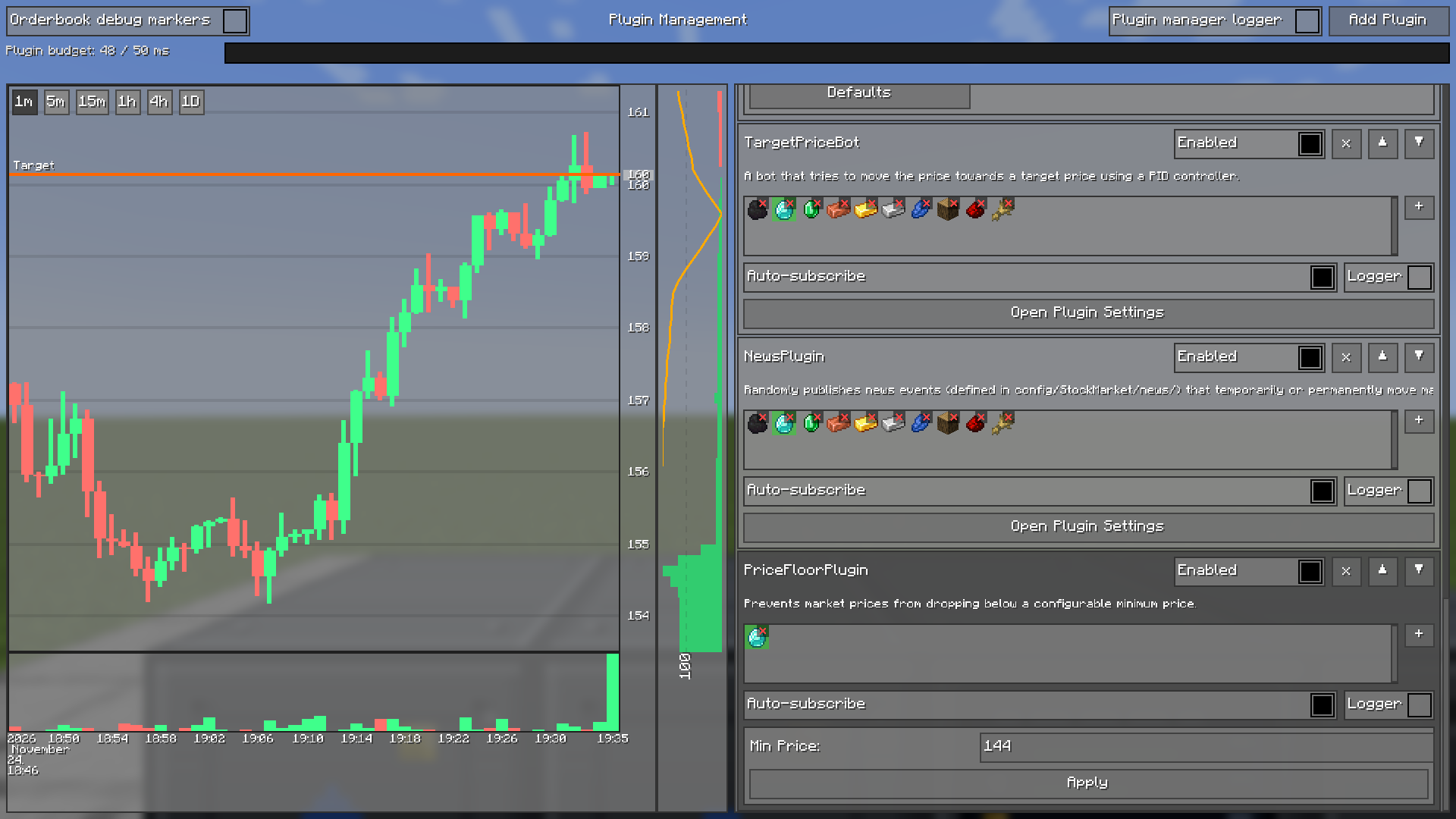
When the market's price falls below the floor, the plugin sets the target price to the floor, and the Target Price Bot buys the price back up.
Keep the plugin below the VolatilityPlugin in the list. The Volatility plugin sets the target price every tick, and the last plugin that sets it wins. New instances are added at the bottom, so this is already the case.
Step 5: Save your own data
The framework saves the per-market settings for you. Use save and load only for data your plugin works out over time:
private long floorHits = 0;   // counted up in update() whenever a floor is enforced

@Override
public boolean save(CompoundTag tag) {
    tag.putLong("floorHits", floorHits);
    return true;
}

@Override
public boolean load(CompoundTag tag) {
    if (tag.contains("floorHits"))
        floorHits = tag.getLong("floorHits");
    return true;
}
loadruns after the markets and their settings are restored, and beforeonEnable().- Check
tag.contains(...)before you read a key. Worlds saved with an older version of your plugin don't have it. - The tag is only stored when you put something into it.
Step 6: Stream live values (optional)
A plugin can send live values to its open settings form, for example a status line. Define a second record with a codec and use it as TRuntimeData:
// Server plugin: ServerPlugin<Settings, Status>
public record Status(int marketsAtFloor) {
    public static final StreamCodec<ByteBuf, Status> CODEC = StreamCodec.composite(
            ByteBufCodecs.INT, Status::marketsAtFloor,
            Status::new
    );
}

@Override
protected StreamCodec<ByteBuf, Status> runtimeDataCodec() {
    return Status.CODEC;
}

@Override
protected Status provideRuntimeData() {
    return new Status(marketsAtFloor);   // a field that update() keeps current
}

@Override
public long getRuntimeDataStreamInterval() {
    return 1000;   // milliseconds; the default is 500
}
// Settings form: PluginGuiElement<Settings, Status>
@Override
protected StreamCodec<ByteBuf, PriceFloorPlugin.Status> runtimeDataCodec() {
    return PriceFloorPlugin.Status.CODEC;
}

@Override
protected void onPluginSyncDataReceived(PluginSyncData data,
                                        @Nullable Map<ItemID, PriceFloorPlugin.Settings> customSettingsMap) {
    // ... settings as in step 3
    startDataStream();   // does nothing if the stream already runs
}

@Override
protected void onRuntimeDataReceived(PriceFloorPlugin.Status data) {
    statusLabel.setText("Markets at their floor: " + data.marketsAtFloor());
}
- The server only sends a new packet when the encoded value changed. Return
nullfromprovideRuntimeData()when you have nothing to send. - Start the stream in
onPluginSyncDataReceived, like the built-in plugins do. The Plugin Management screen stops it when it closes or rebuilds its list. In a screen of your own, callstopDataStream()when it closes.
The trading hours example shows a complete plugin with live values.
Step 7: A screen of its own and chart lines (optional)
A form with many settings can get its own screen. Return true from needsCustomScreen() in the settings form. The plugin's entry then shows Open Plugin Settings instead of the form.
The form can also draw on the chart and the order book view of the Plugin Management screen. Override setCandlestickChart and add an overlay:
private @Nullable CandlestickChart chart;
private final CandlestickChart.Overlay floorLine = this::drawFloorLine;

@Override
public void setCandlestickChart(@Nullable CandlestickChart chart) {
    if (this.chart != null)
        this.chart.removeOverlay(floorLine);   // called with null when the screen rebuilds
    this.chart = chart;
    if (chart != null)
        chart.addOverlay(floorLine);
}

private void drawFloorLine(CandlestickChart chart) {
    ClientMarket market = chart.getMarket();
    if (market == null) return;
    PriceFloorPlugin.Settings settings = settingsMap.get(market.getItemID());
    if (settings == null) return;
    Rectangle bounds = chart.getCanvasBounds();
    int y = chart.toCanvasSpaceY(settings.minPrice());
    chart.drawRect(bounds.x, y, bounds.width, 1, 0xFFFF6600);
}
The chart overlays section of the API reference lists the drawing and conversion methods.
If something goes wrong
| What you see | What it means | What to do |
|---|---|---|
| The plugin is missing from the Add Plugin list | The client never ran the registration. | Call serverSetup() on the client too, see step 2. |
| Plugin mod not installed — custom UI unavailable in the entry | The client doesn't know the plugin type. | Install the plugin mod on the client, and register it on both sides. |
| The entry has no form | No factory set, or the form has no height. | Call setGuiElementFactory in clientSetup(), and setHeight(...) in the form's constructor. |
| The plugin does nothing | New instances start switched off and without markets, and closed markets are skipped. | Tick Enabled, add markets, check the market's trading hours. |
| The target price ignores the floor | A plugin below yours sets the target again. | Move your plugin below the VolatilityPlugin. |
| Apply does nothing | The form has no codec or no selected market. The client log says sendCustomSettings aborted. | Override customSettingsCodec() in the form, and call setActiveMarket. |
| Saved instances are gone after an update of your mod | The type ID changed. | Keep the type ID (the class name) the same in every version. |
Related pages
- Plugin system overview: when each method is called.
- Plugin API reference: every method of the classes used here.
- Example plugins: live values, limit orders and per-market state.
- Plugins: the Plugin Management screen as admins see it.