Creating and managing markets
A market lets players trade one item for money. You create and manage the markets in the Stock Market Management screen. Run /stockmarket manage to open it. You need the StockMarket admin flag, see Admins and permissions.
The screen has three tabs: Overview, Create Markets and Presets.
The Overview tab
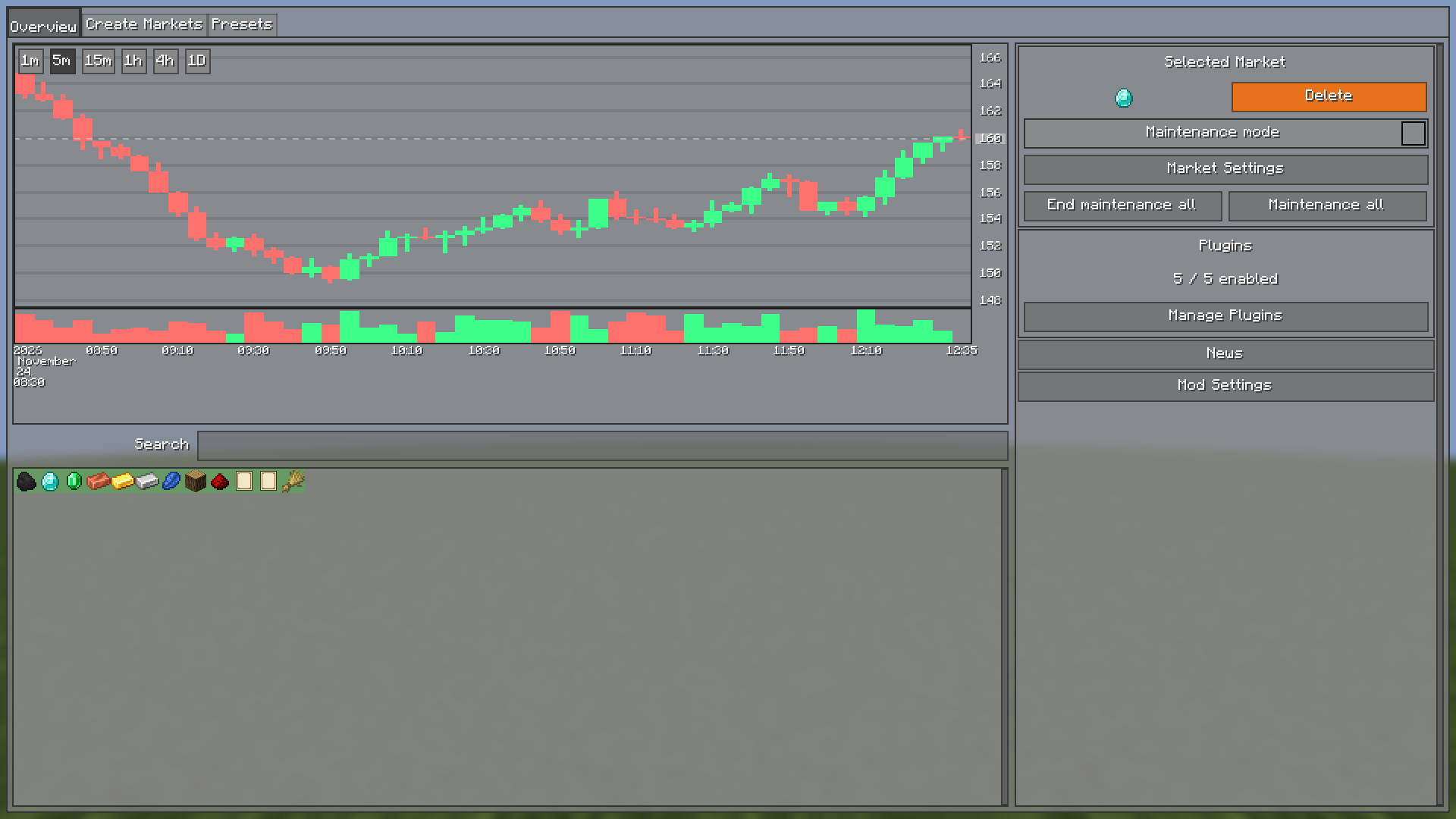
The left side shows every market in a grid with a search box. Click a market to see its price chart. Under Selected Market you have:
- Market Settings: the settings of this market, see below.
- Maintenance mode: stops player trading on this market, see below.
- Delete: deletes the market after a confirmation. Open player orders are closed and refunded.
On the right:
- All Markets: Maintenance all, End maintenance all, Reset Price Chart and Delete all Markets. The last two ask first.
- Manage Plugins: the plugins that move prices and add bot orders.
- Mod Settings: the server settings. Only on the master server.
- News: the news events.
Reset Price Chart clears the price history of all markets: every chart starts again at the current price. Delete all Markets removes every market with its data. Neither can be undone.
Creating markets
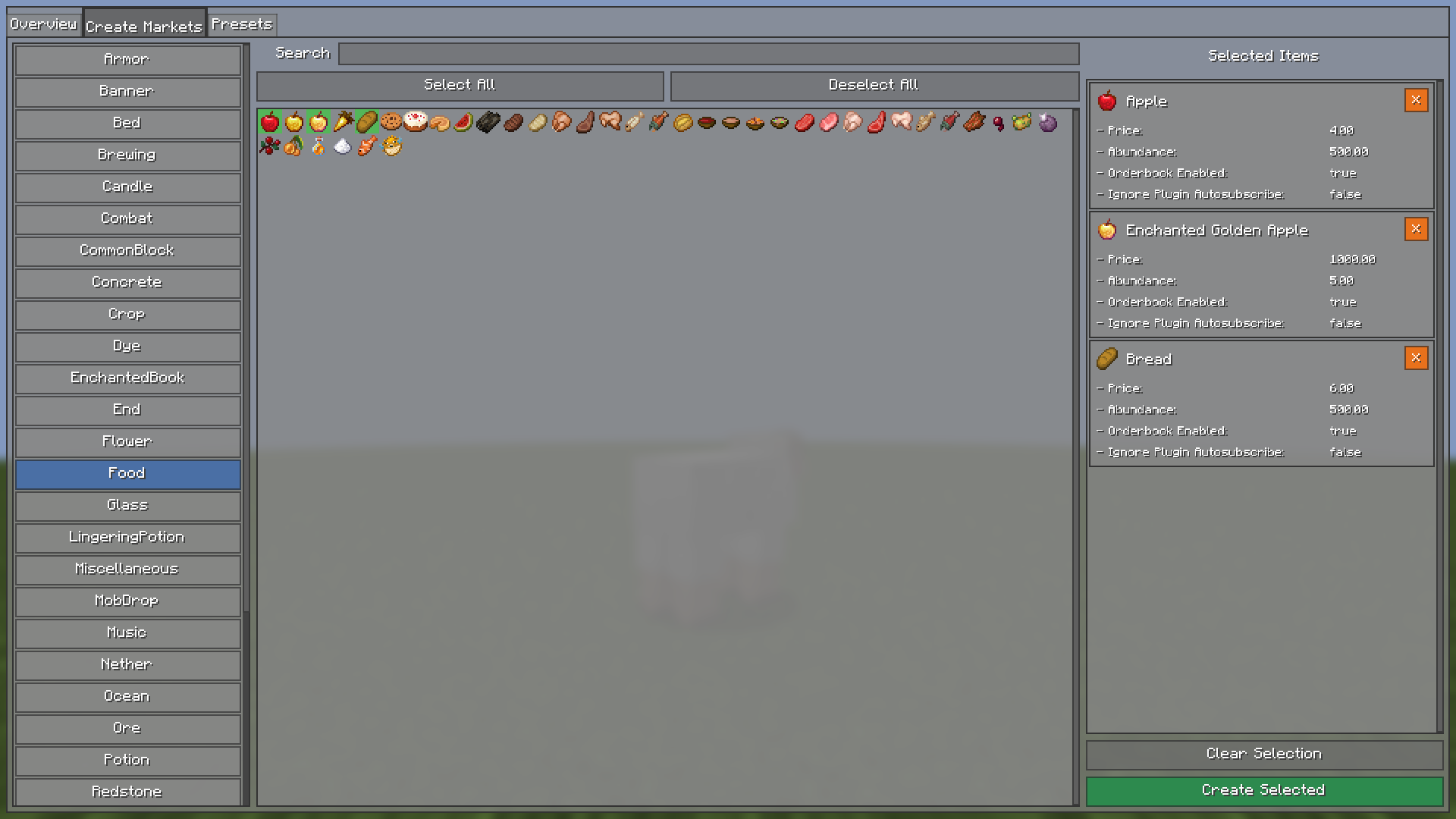
- Open the Create Markets tab.
- Choose a category on the left. The categories come from the presets.
- Click items in the grid to add them to Selected Items. Select All takes the whole category. Items that already have a market are marked Market already exists.
- Check the Price and Abundance of each selected item. The preset fills them in.
- Choose for each item:
- Orderbook Enabled: the market starts with bot orders from the virtual order book. Off: only players trade.
- Ignore Plugin Autosubscribe: plugins that add themselves to new markets skip this one.
- Click Create Selected.
Each new market starts at its price and is open for trading right away, within its trading hours. Its item can also be put into the bank from then on.
Use maintenance mode while you set up
Price and bot changes can make a price jump. Players who see it first can profit. Turn on Maintenance mode before you change a market, and end it when you are done.
Market settings
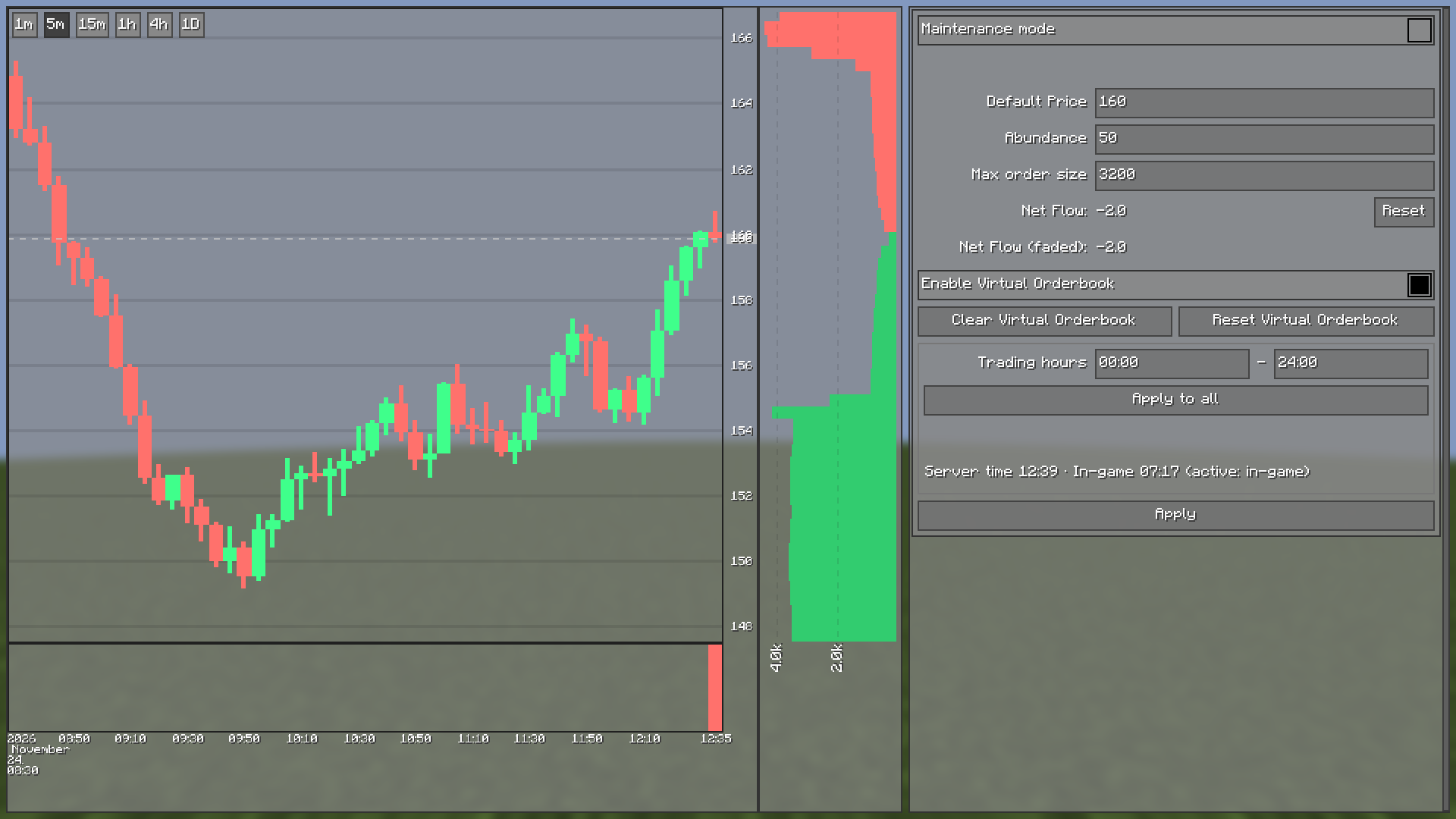
Select a market on the Overview tab and click Market Settings.
| Setting | What it does |
|---|---|
| Default Price | The market's normal price. Price plugins and news events use it as their base. |
| Abundance | How common the item is. A higher value means more bot orders, a larger default order limit, and that players must trade more to move the price. |
| Max order size | The most items one player order may buy or sell. 0 = no limit. Bots are not limited. |
| Trading hours | When players can trade. Apply to all copies them to every market. See Trading hours. |
| Maintenance mode | The same switch as on the Overview tab. |
| Enable Virtual Orderbook | Off: price plugins skip this market completely. No bot orders, no price steering. |
| Reset Virtual Orderbook | Fills the bot orders again from the default distribution. |
| Clear Virtual Orderbook | Removes all bot orders and keeps them at zero, even when the price moves. Reset undoes it. |
| Net Flow, Net Flow (faded) | How many items players sold into the market minus how many they bought. Reset sets both to zero. See Net flow plugin. |
The default Max order size is the Max order size factor from the Mod Settings (default 64) times the abundance, but at least the factor. With abundance 5 that is 320 items.
Maintenance mode
A market in maintenance mode stops player trading:
- Players can't place orders.
- All their open orders on the market are cancelled and refunded, also item-for-item orders.
- Bots and plugins keep trading.
The state is saved and survives a restart. It is separate from the trading hours: a market can be open by its hours and still be in maintenance. Use Maintenance all to stop all player trading at once, for example when something goes wrong.
Commands
| Command | What it does |
|---|---|
/stockmarket manage |
Opens the management screen. |
/stockmarket open "<market>", /stockmarket close "<market>" |
Opens or closes a market until the next change of its trading hours. |
/stockmarket "<market>" remove |
Deletes a market. |
See Admin commands for all commands.
Related pages
- Presets: the prices and categories for new markets.
- Price plugins: what moves the prices.
- Trading hours: when a market is open.