Bank Display
The Bank Display shows a bank account on a wall: either its current balances or a chart of how they changed. Put several displays together to build one large screen. For the recipe, see Blocks and recipes.
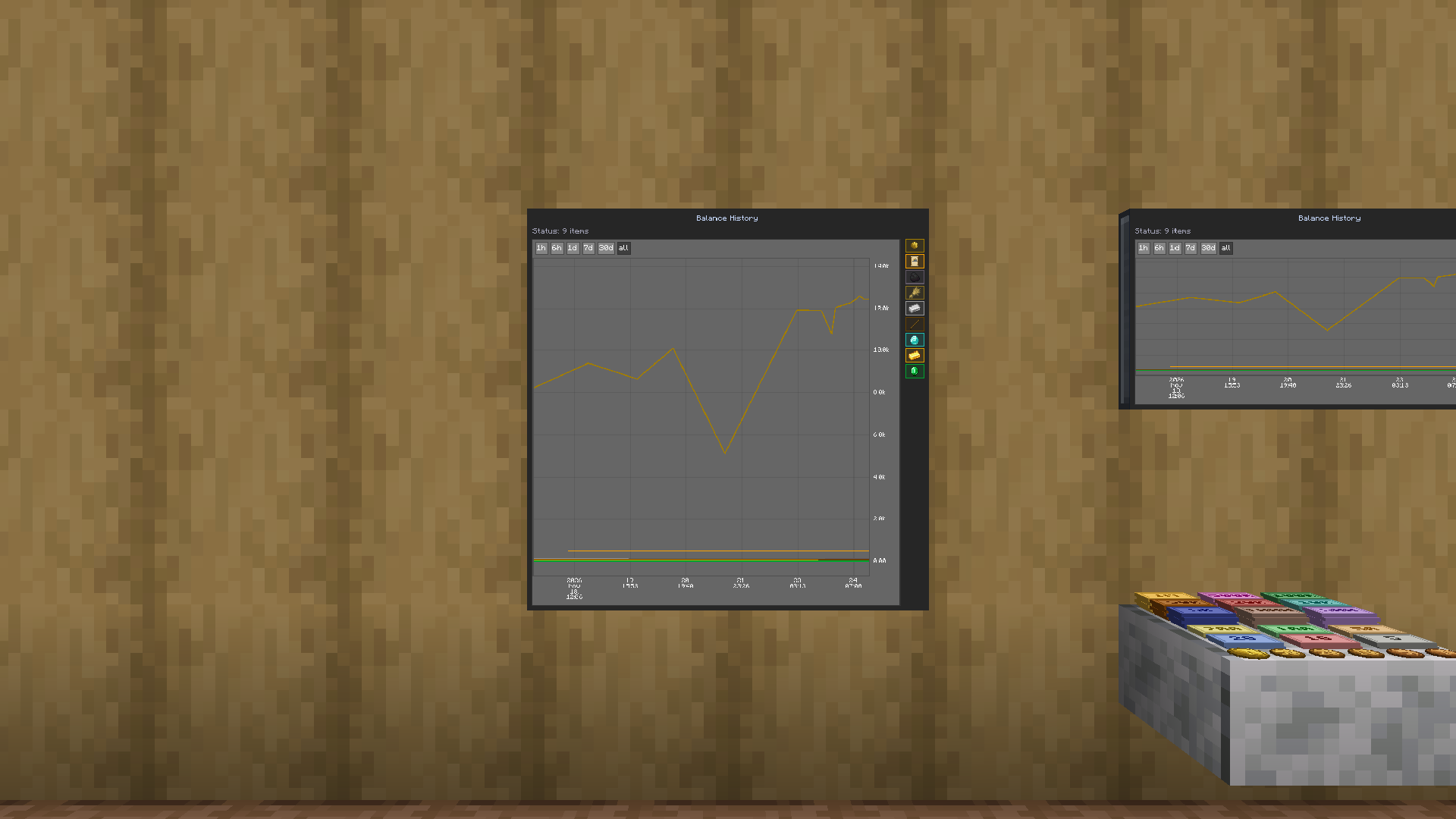
Building a screen
- Place the displays on a wall, side by side and on top of each other.
- Make sure they all face the same way. Displays that face the same way, touch each other and show the same display type join into one screen.
- Fill a full rectangle, for example 3 wide and 2 high.
A display you add next to a configured screen takes over its settings, so the whole screen shows one picture.
Choosing what it shows
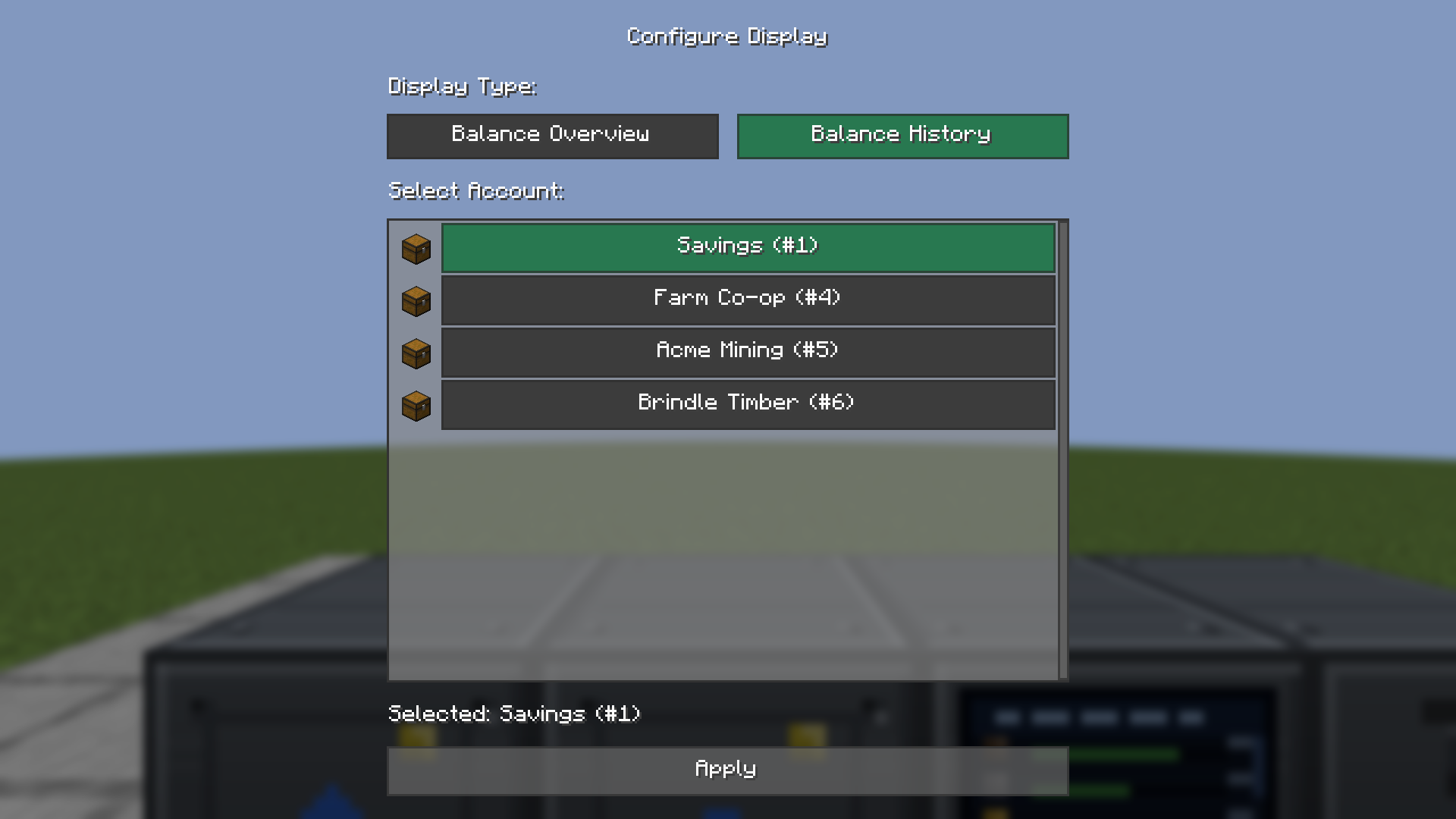
- Right-click the screen. The Configure Display window opens.
- Under Display Type:, pick Balance Overview or Balance History.
- Under Select Account:, pick the account.
- Click Apply.
If you close the window without Apply, a popup asks whether to Save or Discard your changes.
| Display Type | Shows | Updates |
|---|---|---|
| Balance Overview | The items the account holds the most of, as icons with their amounts. | Every second |
| Balance History | A chart of the balances over time, one coloured line per item, with a legend on the right. | Every minute |
You can only pick accounts you are a user of.
Everyone can see it
A display shows the account to every player who walks by. Don't point it at an account whose balance you want to keep private.
Related pages
- Bank Terminal: the same balance history chart, up close.
- Bank accounts: who counts as a user of an account.
- Stock Market Display: a live price chart instead of a balance.